Physical Address
304 North Cardinal St.
Dorchester Center, MA 02124
Physical Address
304 North Cardinal St.
Dorchester Center, MA 02124
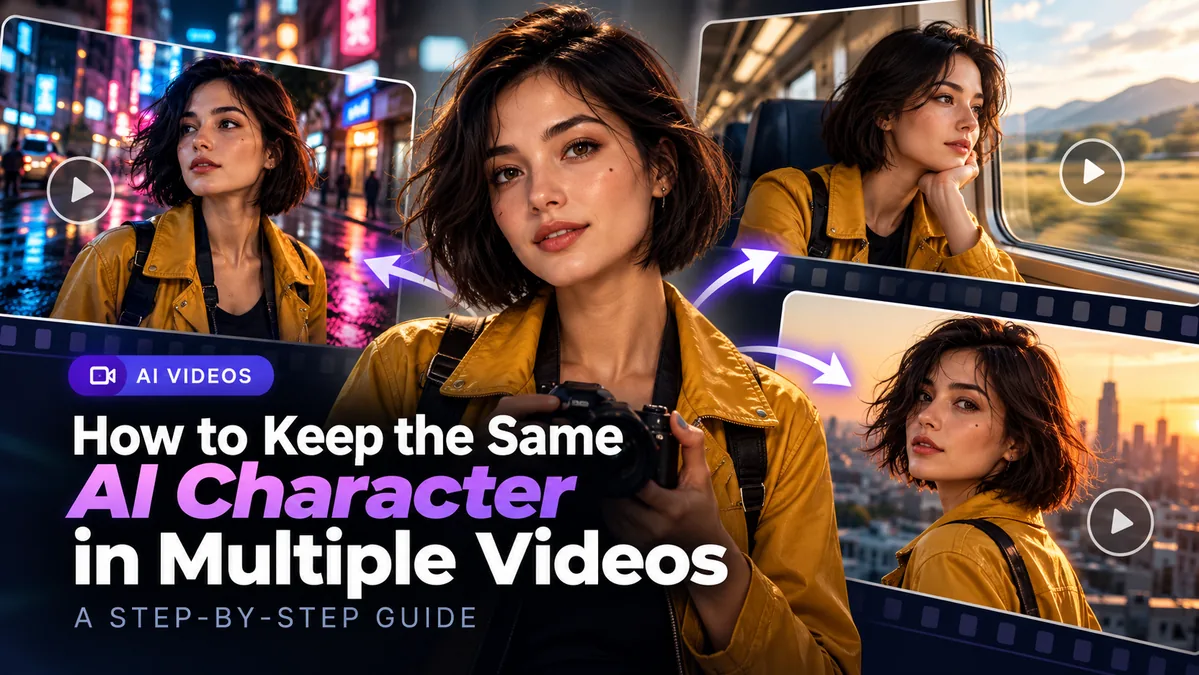
You create a great AI character, generate a short video, and everything looks promising. Then you try to make a second scene. Suddenly, the character’s face looks different, their hairstyle changes, or their clothing no longer matches.
Keeping the same AI character across multiple videos is challenging because each new generation may reinterpret the person’s appearance.
The practical solution: Build a consistent visual reference, prepare an approved starting image for each scene, and use image-to-video generation to animate those images. Check every clip before adding it to your final sequence.
This guide explains how to organize that workflow, provides reusable prompts, and shows how to identify character drift before it ruins a multi-scene project.
AI video models generate visual information based on their available inputs. When you start a new video using only a text description, the model may create a different interpretation of the same character.
For example, describing someone as “a young woman with black hair and a yellow jacket” does not uniquely identify one face.
Character consistency involves two related problems:
A video can look stable from beginning to end while still portraying a slightly different person from your previous scene.
Rather than generating every clip independently from text, start with a visual reference of your character.
For this workflow, we will use a fictional character named Maya. She is a young urban photographer with a short black bob, warm brown eyes, a small beauty mark below her left eye, and a distinctive mustard-yellow jacket.
Maya is an illustrative example, not a character from a completed video test.
We will plan three different scenes:
The character’s identity should remain consistent while the background, action, and camera movement change.
First, generate a clear portrait with the character’s main identifying features visible.
Example character creation prompt:
Create a photorealistic portrait of a fictional 27-year-old urban photographer named Maya. She has a short straight black bob haircut, warm brown eyes, natural facial proportions, olive-toned skin, and a small beauty mark below her left eye. She wears a mustard-yellow jacket over a black shirt. Show her from the waist up, facing the camera, with soft natural lighting and a simple neutral background. Use realistic photographic detail. Generate one image without text or a collage.
Review the result carefully. Make sure the face is visible, the hairstyle is clearly defined, and there are no unwanted distortions.
Save the approved image as your master reference. Keep the original file instead of repeatedly downloading and reusing compressed screenshots.
For more demanding projects, consider creating additional approved views of the same character, such as a three-quarter angle and a full-body view. These must still match the original identity.
Before animating Maya, create a separate still image for each scene using the approved master reference.
This matters because the original neutral portrait may not contain the pose, clothing details, or environment required for every shot.
Runway’s Gen-4 References feature is one option for creating new still images while retaining characteristics from reference images. Its official documentation recommends clear reference photos and supports reference-based character transformations.
Important: An image-reference feature and an image-to-video feature are not necessarily the same tool. A useful workflow is to prepare the scene image first, then animate that image with a compatible video model.
Upload Maya’s original portrait to an image generator that supports character references.
Example still-image prompt:
Use the attached character portrait as the identity reference. Create a photorealistic cinematic image of the same woman standing on a neon-lit city street after rain. Preserve her recognizable facial proportions, short straight black bob, brown eyes, beauty mark below her left eye, and mustard-yellow jacket. Show her from the waist up, with reflections on the wet pavement and colorful city lights behind her. Maintain realistic proportions and natural photography. Generate one image without text.
Check the new still against the original portrait before continuing.
Return to the same master reference rather than using the generated neon-city image as the character reference.
Example still-image prompt:
Use the attached original portrait as the identity reference for the same fictional woman. Create a photorealistic image of her sitting beside a large train window during daytime. Keep her facial structure, short black bob, brown eyes, beauty mark, and mustard-yellow jacket consistent with the reference. Show a clear three-quarter view of her face as she looks toward the window. Include realistic train seating and softly blurred countryside outside. Generate one image without text.
Again, use Maya’s original identity reference.
Example still-image prompt:
Use the attached original character portrait as the identity reference. Create a cinematic, photorealistic image of the same woman standing on a city rooftop at golden hour. Preserve her facial proportions, black bob hairstyle, brown eyes, small beauty mark below her left eye, and mustard-yellow jacket. Show her from the waist up with the skyline in the background and warm evening sunlight. Generate one image without text.
Do not move on to video until you have approved the appearance in all three starting images. Fixing an incorrect still first is usually more practical than trying to repair an already generated moving clip.
Now open an AI video generator with image-to-video support, such as a compatible model in Runway.
Upload your approved image for the first scene.
According to Runway’s image-to-video prompting documentation, the input image provides the visual starting point, while the text prompt should primarily describe movement, camera behavior, and timing.
That means you usually do not need to describe Maya’s entire appearance again in the motion prompt.
Example image-to-video prompt:
The woman begins walking slowly toward the camera along the wet street. Her jacket moves naturally as she walks. Colorful reflections shimmer on the pavement. The camera tracks backward smoothly, maintaining a steady medium shot. Natural walking motion, realistic movement, continuous cinematic shot.
Example image-to-video prompt:
The woman sits beside the train window and slowly turns her gaze toward the passing landscape. The scenery moves smoothly outside the window. Her hair moves slightly with the train’s motion. The camera remains fixed in a steady three-quarter composition. Subtle natural movement, realistic cinematic shot.
Example image-to-video prompt:
A gentle breeze moves the woman’s hair and jacket as she stands on the rooftop. She slowly turns her head toward the city skyline. Warm sunlight falls across the scene. The camera makes a subtle, slow push forward. Natural body movement, realistic wind effects, continuous cinematic shot.
Tip: Begin with modest motion rather than combining rapid camera movement, major pose changes, and complex character actions in the same generation.
Before editing the scenes together, compare each generated clip with your master portrait and the approved starting image.
Do not judge character consistency only by the first frame. Inspect the middle and final frames, especially during movement.
| What to check | Warning signs |
|---|---|
| Face shape | Different jawline, nose, or facial proportions |
| Eyes | Changes in color, shape, or spacing |
| Hair | Different hair length, hairline, or hairstyle |
| Beauty mark | Moves, disappears, or changes position |
| Clothing | Jacket changes color, design, or details |
| Motion | Face deforms during a turn or hands become distorted |
For a simple review, capture three frames from each clip: the beginning, middle, and end. Place them next to the master reference and compare the details.
If a clip fails, try simplifying the motion prompt or correcting the starting image. Avoid accepting a visibly changed face just because the animation looks impressive.
Once you have accepted the individual clips, combine them in a video editor.
You can use an editor such as CapCut, DaVinci Resolve, or another application that supports your exported video files.
Color grading can help different shots feel more coherent, but it cannot reliably fix a character whose facial identity has changed.
Large head turns require the model to invent facial information that may not be visible in the starting frame.
Try this: Use a starting image with a suitable three-quarter angle, reduce the amount of rotation, or test a shorter, slower movement.
This can happen when each scene is generated from a new text description rather than a shared identity reference.
Try this: Prepare every scene from the same approved master reference. Keep defining facial details consistent and review the still images before animating them.
Complex folds, overlapping objects, or large body movements can introduce visual inconsistencies.
Try this: Start with a simpler pose and make the action more controlled. Inspect the clothing near the middle and end of the clip.
An overly ambitious camera move can make it harder to evaluate the character and may introduce unwanted changes.
Try this: Use clear motion instructions such as “The camera remains fixed” or “The camera slowly pushes forward.” Runway recommends explicitly describing camera movement when it matters.
Check whether the scene’s input image was actually derived from the same master reference. Reusing a previous generated result that already contains identity drift can carry that problem into later clips.
Try this: Return to the original character reference when preparing independent scenes.
| Approach | Main advantage | Limitation |
|---|---|---|
| Text-to-video only | Quick to describe an entirely new scene | The same description may produce different faces |
| Image-to-video | Starts from an approved visual composition | Identity can still drift during motion |
| Reference-based scene images followed by image-to-video | Separates character identity, scene creation, and animation | Requires preparation and checking of multiple assets |
For a multi-scene character project, we recommend starting with a consistent visual reference and approved scene images. This is a practical workflow recommendation, not a claim that any model can guarantee identical characters.
Some AI video platforms offer trial credits or limited free access, but availability, watermarks, export quality, and commercial-use conditions vary by service and can change.
Before choosing a tool, check whether your account supports image-to-video generation, how many credits each clip consumes, whether you can export the result, and what usage rights apply.
If you have limited credits, begin with one approved image and one simple animation rather than producing several expensive clips immediately.
Yes. A reference-based workflow can help keep one character recognizable across scenes. However, perfect consistency is not guaranteed, so each generated clip still needs review.
No. Text descriptions communicate general attributes but do not reliably preserve one exact facial identity across independent generations.
It often provides a more controlled starting point because the model receives an approved image of the character. It can still introduce changes during animation.
Use a previous frame when you want direct visual continuation. For independent scenes, returning to the original master reference can help avoid propagating changes introduced in earlier generations.
Begin with one clear master portrait. Add approved side, three-quarter, or full-body views when your scenes require information that the original image does not show. The number of references a tool accepts depends on its model and workflow.
Keeping the same AI character across multiple videos is less about finding a magical prompt and more about building a repeatable workflow.
Define the character once, prepare consistent starting images, animate them with controlled motion prompts, and review every clip.
For the Maya example in this guide, the city street, train, and rooftop scenes illustrate how that process can be organized. The prompts are reproducible starting points, not claims of completed generation tests.
For additional guidance, see the Runway Image-to-Video Prompting Guide and Runway Gen-4 Image References documentation.
