
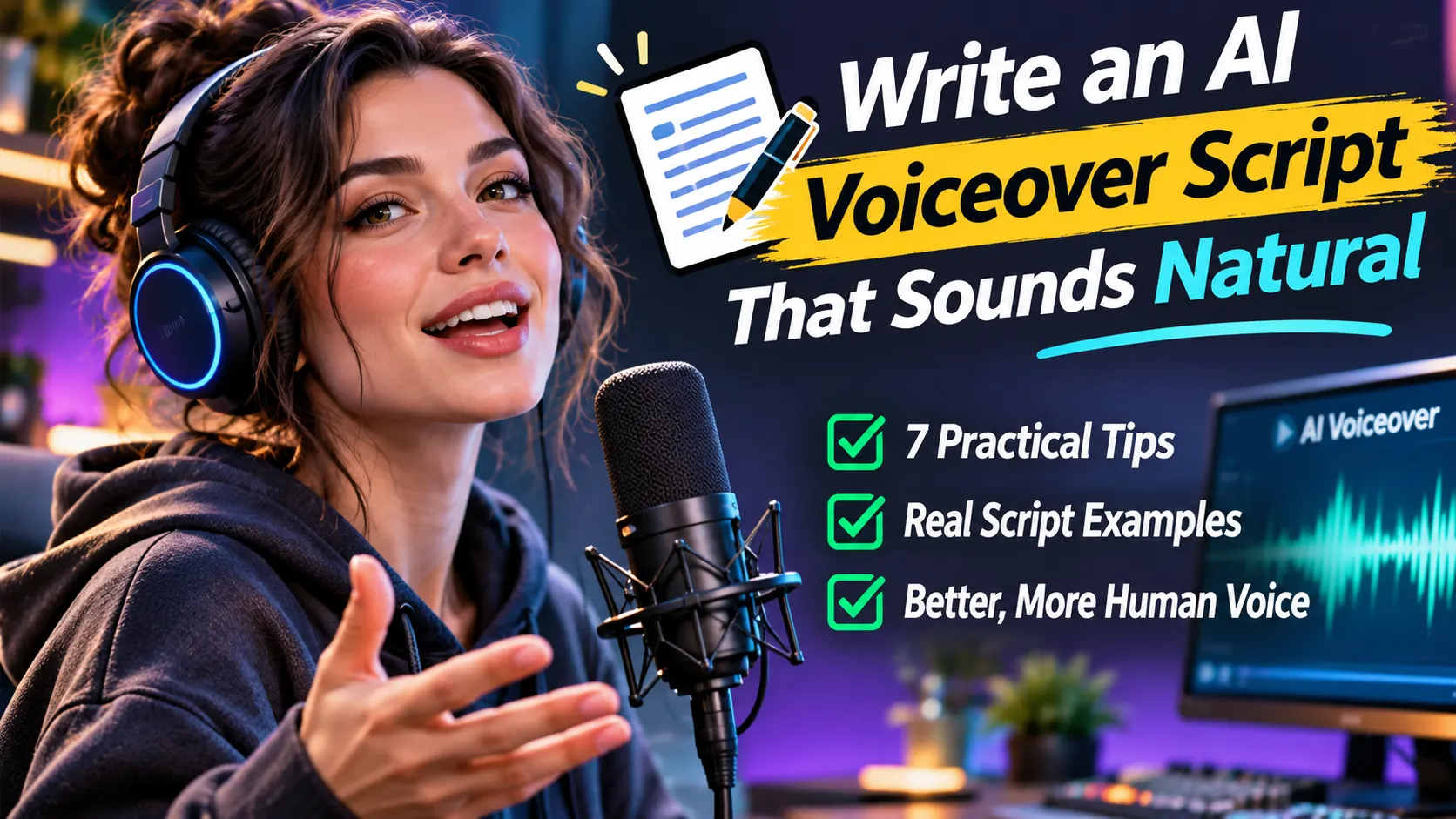
An AI voiceover can have a convincing voice and still sound unnatural. Sometimes the problem is not the voice model. It is the script: long sentences, difficult numbers, unexplained acronyms, awkward transitions, and lines written for the eye rather than the ear.
This guide shows how to write an AI voiceover script for short videos, tutorials, product demonstrations, and narration. You will get a repeatable editing workflow, original copy-and-adapt examples, and model-specific advice for pauses. Most scripts below are illustrative writing examples. We also include three real audio recordings generated from three versions of the same basic message, using the same voice and settings, so you can hear the differences for yourself.
Why a Good AI Voice Can Still Sound Robotic
Text-to-speech systems turn written text into speech, but punctuation, word choice, and sentence structure influence how a line is delivered. A dense paragraph may be perfectly readable on a screen and tiring to hear in one uninterrupted pass.
Consider this deliberately overloaded sentence:
Now compare a spoken-first rewrite:
The second version does not depend on a special voice setting. It provides a clearer sequence and gives the listener places to absorb the message. That makes it a useful starting point for a voiceover, although the final sound will still vary by model and voice.
How to Write a Natural AI Voiceover Script: Seven Steps
1. Give each sentence one job
Do not force the introduction, explanation, example, and call to action into one sentence. Separate them. A useful test is whether someone could repeat the main point after hearing it once.
Before: “The editor, which includes multiple tools and supports various output formats, allows creators who already have footage to make changes quickly.”
After: “Already have footage? Open it in the editor. You can make changes and export a new version without starting over.”
2. Put the action before the explanation
In a tutorial, tell viewers what to do, then explain why. This keeps the narration synchronized with the interface. Instead of “In order to begin the process of exporting,” say “Click Export.” Then explain the available formats or trade-offs.
3. Write transitions the listener can follow
Readers can scan backward. Listeners usually cannot. Use natural guideposts: “First,” “Here is the problem,” “Now compare that with,” and “The important part is.” Do not repeat those phrases mechanically; use them only when they prevent confusion.
4. Replace visual shorthand with spoken words
Symbols and abbreviations can be ambiguous in audio. “5–10 sec,” “$19/mo,” “1080p,” or “API” may not be spoken as intended. Write the wording you want the audience to hear, especially for prices, dates, technical terms, and brand names.
| On-screen copy | Voiceover-friendly wording |
|---|---|
| 5–10 sec | five to ten seconds |
| $19/mo | nineteen dollars per month |
| 1080p | ten eighty p, if that matches your audience’s vocabulary |
| 3x faster | three times faster |
| API | A P I, or application programming interface on first mention |
These rewrites are editorial examples, not a guarantee that every voice model would mispronounce the original. Test pronunciations with the actual voice you plan to use.
5. Use punctuation for meaning, not decoration
Commas, periods, question marks, and paragraph breaks tell a reader how a line is structured and can influence synthesized speech. Short sentences may produce a more deliberate rhythm. Ellipses can signal hesitation, so adding them everywhere can make narration sound uncertain.
Start with ordinary punctuation. Add explicit pause controls only if the chosen model supports them and you need a different result.
6. Design emotion around the scene
Do not mark every sentence as excited, dramatic, or emotional. An instruction video may need calm clarity; a mystery opening may benefit from suspense. If you are using a system with audio tags, place them at genuine emotional changes instead of filling the entire script with directions.
7. Test a short section before generating the whole script
Generate a representative opening, a difficult technical sentence, and your call to action. Listen for pacing, pronunciation, unwanted emphasis, and whether the narration fits the visuals. Change one variable at a time so the cause of any improvement remains understandable. Generation usually consumes credits or quota, so check the service’s current terms first.
Three Ready-to-Adapt AI Voiceover Script Examples
The three ready-to-adapt scripts in this section are illustrative templates, not recordings from our experiment below.
Example 1: A short AI tool demonstration
Here is the original image.
Now watch what happens when we add a simple motion instruction.
The result is not perfect. Notice how the background moves more than the subject.
That is why the prompt—and the starting image—both matter.
Why this structure helps: each line matches a visual moment, the claim stays modest, and the viewer knows what to watch for. Replace the observational sentence with what your own example actually shows.
Example 2: A product tutorial
Next, choose the voiceover tool.
Paste your script into the text box. Before generating, check the voice and language settings.
Listen to the preview, if your chosen service offers one. Pay attention to names, numbers, and pauses.
When it sounds right, export the audio and place it beneath your video.
Why this structure helps: the instructions follow the order of actions. Adapt the button names and preview step to the actual software; interfaces and availability vary.
Example 3: A documentary-style opening
A desk. A lamp. A closed notebook.
But look at the clock.
It has been running backward for the last hour.
And nobody has noticed.
Why this structure helps: varied sentence lengths create natural places for suspense without requiring a long string of technical delivery tags.
How to Add Pauses in ElevenLabs Without Using the Wrong Tags
The model version matters. According to ElevenLabs’ current documentation, Eleven v4 and v3 use punctuation and audio tags for pauses and delivery; they do not support SSML <break> tags. Several older models, including Multilingual v2 and Flash v2.5, support SSML breaks. See the official pause instructions.
| Model group | Pause method to consider | Practical caution |
|---|---|---|
| Eleven v4 / v3 | Punctuation, text structure, and compatible audio tags | Do not paste SSML break tags and expect them to work |
| Multilingual v2 / Flash v2 / Flash v2.5 | SSML <break time="1.0s" /> where supported |
Avoid excessive breaks; check the selected model |
For a version that supports audio tags, a draft might look like this:
This is a syntax illustration, not a recorded test. Tags influence generation rather than guaranteeing an exact duration. For a supported older model, an SSML example is:
Do not assume a notation that worked in one voice model will work identically in another. ElevenLabs also documents how voice choice influences delivery. Read its official text-to-speech best practices.
Want to hear how different controls affected real audio? Our separate guide, How to Make ElevenLabs Sound More Natural: 7 Real Audio Tests, includes actual recordings and observations. This script-writing guide focuses on the words you prepare before generation, so the two articles serve different needs.
Our Real Audio Test: Three Writing Styles, One AI Voice
Can you change how an AI voiceover feels just by rewriting the script? We prepared three short scripts delivering the same basic message: turn a still image into a short AI video by uploading an image and describing its motion. Then we generated one audio sample for each. These are real recordings made for AI Revolution, not simulated players or hypothetical examples.
Version A — Formal / Corporate
Version B — Conversational
Version C — Expressive / Story-Led
What to Listen For
Play the samples back-to-back at the same volume. Notice how the opening sentence lands, where the voice naturally pauses, whether the directions are easy to follow, and which style you would choose for a real video. Our three scripts convey similar steps but are not word-for-word identical; the comparison demonstrates alternative writing approaches rather than proving one is universally best.
| Version | Writing choice | What you can compare |
|---|---|---|
| A — Formal | Structured instructions and formal wording | Clarity and corporate tone |
| B — Conversational | Opening question, direct address, compact sentences | Approachability and rhythm |
| C — Expressive | Imaginative opening, short action sentences | Energy, pacing, and transitions |
Our editorial conclusion: The key difference we intentionally introduced was the writing style, not the voice or selected synthesis controls. These single samples let listeners judge the effect in context; we have not assigned subjective scores or claimed that any version wins without a recorded listening assessment. Your preferred version may depend on whether you are making a product tutorial, a friendly social video, or a dramatic introduction.
Voiceover Script Checklist Before You Generate
- Does the first sentence tell viewers why they should listen?
- Can each sentence be understood on the first hearing?
- Are numbers, prices, acronyms, and unusual names written for speech?
- Do your instructions match the order of actions on screen?
- Have you removed unnecessary filler and exaggerated claims?
- Does the selected model support the pause controls you used?
- Have you checked the script for factual and product-interface accuracy?
- Will you listen to a short sample before spending credits on the full recording?
Common Script Problems and How to Fix Them
| What you hear | What to edit first |
|---|---|
| Flat, unbroken narration | Break long sentences, strengthen transitions, and review punctuation |
| Unnatural stress on a word | Simplify the sentence; move the important phrase; test alternate wording |
| Numbers or acronyms pronounced oddly | Write their intended spoken form |
| Too many dramatic pauses | Remove unnecessary ellipses or emotion tags |
| Voiceover runs ahead of the video | Cut filler, split the explanation by shots, or adjust editing timing |
| Different sections sound inconsistent | Keep the script style, voice choice, and delivery controls consistent |
Frequently Asked Questions
How long should an AI voiceover script be?
Write for the available speaking time rather than an arbitrary word count. Read your first draft aloud, time it, and leave room for visual transitions. Speaking rate varies by voice and model, especially when pauses or expressive delivery are added.
Should I put emotion tags in every sentence?
No. Use them selectively where a change in emotion genuinely matters and only in systems that support them. A clear script with natural punctuation is the best starting point.
Can I use the same script for YouTube Shorts and long tutorials?
You can reuse the central idea, but editing should differ. A short video usually benefits from a fast setup and one main point. A longer tutorial needs clear transitions, reminders, and space for individual steps.
Does better writing guarantee a human-sounding voice?
No. Script quality is one variable alongside the model, selected voice, pronunciation, and generation settings. Better writing can make the narration easier to deliver, but it cannot fix every synthesis artifact.
Final Takeaway
Before experimenting with more voice settings, improve the words. Cut long sentences, use clear spoken language, align each line with a visible action, and check tricky pronunciations. Then use the pause and expression controls supported by your specific model. That workflow is useful whether you narrate a product tutorial, an AI-video demo, or a short story.
Editorial note: The scripts and before/after rewrites in this guide are illustrative examples written for AI Revolution. The three formal, conversational, and expressive scripts were each generated once in ElevenLabs for this article; their audio players are embedded above. Other examples in this article remain illustrative and were not separately tested. Model compatibility information was checked against ElevenLabs’ official documentation; features may change. Sources: ElevenLabs pauses; ElevenLabs best practices; ElevenLabs audio tags.