Physical Address
304 North Cardinal St.
Dorchester Center, MA 02124
Physical Address
304 North Cardinal St.
Dorchester Center, MA 02124

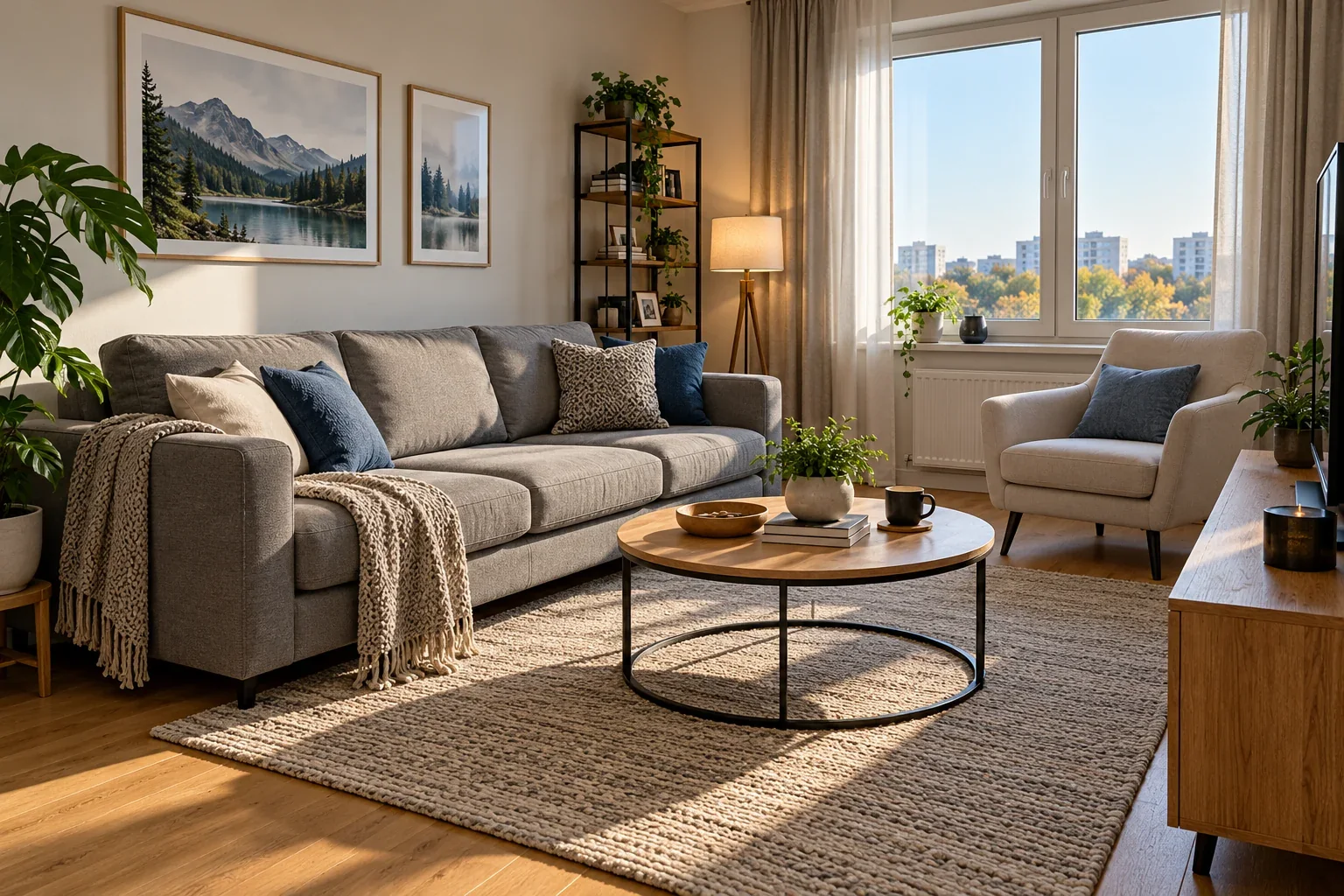
You ask ChatGPT to change one small detail in a photo, but you want everything else to stay the same. Sometimes that works surprisingly well. Other times, the background, nearby objects, shadows, or textures can shift too.
The practical answer: Start from the original image, name the exact object you want to edit, explain which details must stay unchanged, and compare the result carefully. A longer prompt is not automatically a better prompt—and neither wording nor area selection guarantees pixel-perfect editing.
We tested this with the same AI-generated living room in three independent edits: a short sofa-recoloring prompt, a detailed sofa-recoloring prompt, and the removal of a small coffee cup. Below are the original prompts, actual results, and what they reveal.
Generative image editing is not the same as changing a color in a traditional photo editor. It can reinterpret and reconstruct parts of the picture as it follows your instruction. That means even a targeted request may produce differences in fabric texture, edges, shadows, reflections, or nearby objects.
OpenAI’s Images in ChatGPT documentation explains that users can describe changes directly or, where supported, select an area to edit. It also notes that selected areas are not always precise and edits may extend outside a selection.
That does not mean every small edit will fail. In our tests, both color changes preserved the room’s overall layout well. The object-removal edit exposed a subtler problem.
For straightforward changes, begin with a short instruction. Add more constraints when the original scene includes details you particularly need to protect.
We used an AI-generated living room with a gray sofa, pillows, a knitted throw, armchair, framed artwork, plants, a coffee table, and sunlight through a window. The table also had a dark coffee cup, making it suitable for a small-object-removal test.
Each edit started from the same unedited original. We did not use Test 1’s blue-sofa result as the source for Test 2 or Test 3. We evaluated the outputs visually rather than running a formal pixel-level accuracy benchmark. The examples show what happened in these specific generations, not a general success rate.
Exact prompt used:
Change the gray sofa to blue. Keep everything else the same.
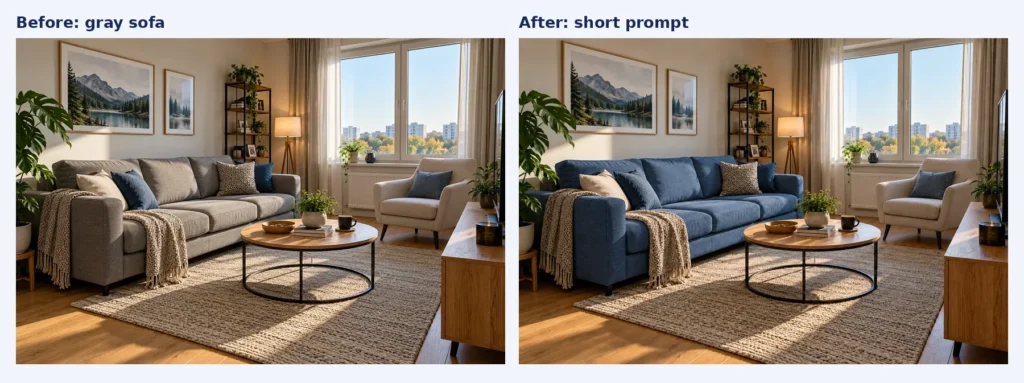
Before and after: the gray sofa becomes blue using a one-sentence instruction.
Result: ChatGPT turned the sofa blue. The armchair, wooden table, paintings, cushions, blanket, and general composition remained visually consistent. There may be subtle differences in rendered fabric textures or local detail, so we would not describe the output as pixel-identical.
Takeaway: For an obvious, isolated color change, a short prompt can be sufficient.
Exact prompt used:
Change only the gray sofa upholstery to a deep blue color. Preserve the sofa’s exact shape, size, fabric texture, cushions, and position.
Do not modify any other objects in the image. Keep the walls, paintings, armchair, coffee table, rug, plants, curtains, lighting, shadows, and camera angle exactly as they are.
The final image should look identical to the original except for the sofa upholstery color.
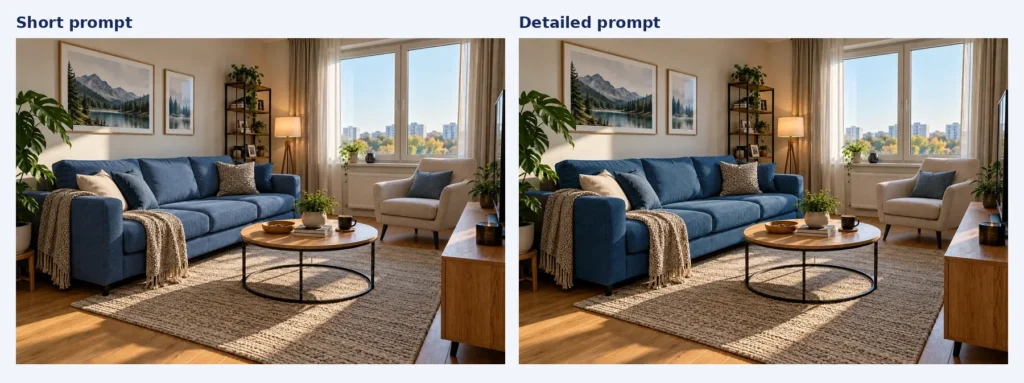
Both the short and detailed prompts produced a blue sofa while keeping the overall room arrangement visually stable.
Result: ChatGPT again recolored the sofa successfully. We did not notice a meaningful improvement in overall layout preservation compared with Test 1. The two edited images were not perfectly interchangeable in every fine visual detail.
Takeaway: Extra instructions can clarify what matters, especially in a complex scene, but this test does not demonstrate that longer prompts always perform better.
For the third test, we returned to the original gray-sofa image and asked ChatGPT to remove the dark cup from the right side of the round wooden coffee table.
Exact prompt used:
Remove only the dark coffee cup on the right side of the round wooden coffee table. Reconstruct the tabletop naturally where the cup was. Keep the wooden bowl, books, plant, sofa, cushions, armchair, lighting, shadows, and camera angle unchanged. Do not remove or rearrange anything else.
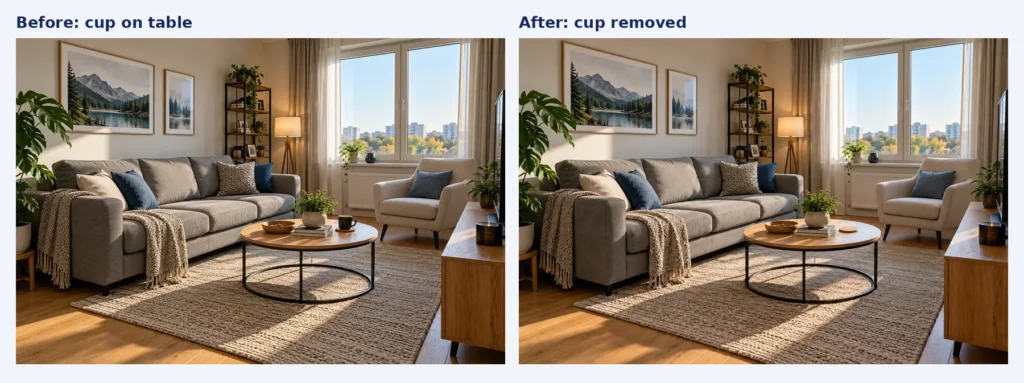
The cup disappears, but a small round coaster-like detail remains in approximately the same area.
Result: The dark coffee cup disappeared, and the surrounding furniture and room arrangement were preserved well. However, the edited tabletop was not completely clear: a small round element, resembling a coaster or replacement surface detail, appeared where the cup had been.
That distinction matters. The instruction was to remove the cup and reconstruct the tabletop naturally, not to replace the cup with another small object.
Takeaway: An AI edit can look successful at a glance while leaving behind an unwanted replacement detail. Always inspect the specific area you asked to change.
Requested change: Gray sofa to blue.
What we observed: Successful recoloring. The room’s overall appearance remained visually consistent.
Limitation: Fine details were not assessed pixel by pixel.
Requested change: Change the sofa upholstery to deep blue while preserving the surroundings.
What we observed: Successful recoloring, with no obvious major improvement over the short prompt.
Limitation: More detailed instructions did not guarantee better preservation.
Requested change: Remove only the dark coffee cup.
What we observed: The cup disappeared, and the room’s overall composition was preserved.
Limitation: A small round detail remained on the tabletop.
Bottom line: Our results were encouraging for a simple color change but less exact for small-object removal. These are three demonstrations, not a statistical comparison of models or settings.
Instead of “Make the furniture blue,” try “Change only the gray sofa upholstery to navy blue.” Naming the object and its material helps clarify the intended edit.
If the composition is important, add: “Keep the cushions, throw, coffee table, wall art, lighting, and camera angle unchanged.” Focus on relevant constraints rather than describing every object in a lengthy paragraph.
Repeatedly editing an already altered result can carry unintended details into later versions. Save the original and compare separate attempts against it.
Our coffee-cup test is a useful example: the dark cup was gone, but a circular detail remained. Look for remnants, substituted objects, distorted edges, altered shadows, and unexpected textures.
OpenAI documents selection-based editing, but actual controls can differ across interfaces. If a selection tool is available, select the target and describe the change. A selection is guidance, not a promise that nearby pixels will be unaffected. We did not test this method here, because the relevant selection control was not available in the interface used for our attempts.
If you need strict pixel preservation—for example, a product image where only one specified color may change—use a layer-based editor, masking, or a manually verified workflow. Generative edits are better treated as drafts that require checking.
Change only one object’s color:
Change only the [object/material] from [current color] to [new color]. Preserve its shape, position, and texture. Do not change the surrounding objects, lighting, shadows, or camera angle.
Remove one object:
Remove only the [object] located [exact position]. Fill the area naturally using the surrounding background. Keep all nearby objects, reflections, shadows, and composition unchanged. Do not introduce replacement objects.
Replace one item while preserving the scene:
Replace only the [existing object] with [replacement]. Keep its location and approximate scale consistent. Preserve the rest of the scene, including furniture arrangement, lighting, background, and viewpoint.
These are example templates, not additional tests we performed.
Often it can, especially when the target is clear. In our sofa tests, the room remained visually consistent. But no prompt guarantees that other pixels will remain unchanged.
Generative tools may reconstruct the area rather than simply delete pixels. In our test, the coffee cup was removed but a round coaster-like detail remained. If that happens, retry from the original and explicitly request a clear tabletop with no replacement object.
Not necessarily. Both versions recolored our sofa successfully. A longer prompt is useful when you have precise preservation requirements, but added wording alone does not ensure a more accurate edit.
Some ChatGPT image-editing interfaces offer a selection tool. OpenAI notes that selected areas are not always precise and changes can extend beyond them. Our three completed tests used text instructions, not manual area selection.
If a previous edit introduced unwanted changes, restarting from the original usually makes it easier to evaluate whether a new instruction worked. Keep the original file available throughout the process.
ChatGPT can make targeted changes without visibly rebuilding an entire scene, but perfect preservation is not guaranteed. In our three independent tests, two sofa-recolor prompts worked well, while an object-removal request left behind a small unwanted detail. The practical lesson is to be specific, keep the original, and inspect each result—especially the area you asked the AI to modify.
For another hands-on example of controlling visual consistency, read our guide: How to Keep the Same Character in AI-Generated Images.
Testing note: AI Revolution created the initial living-room image and compared three separate ChatGPT image-editing outputs. Results are visual observations from these examples; they are not a guarantee of how every prompt or account will behave.
