
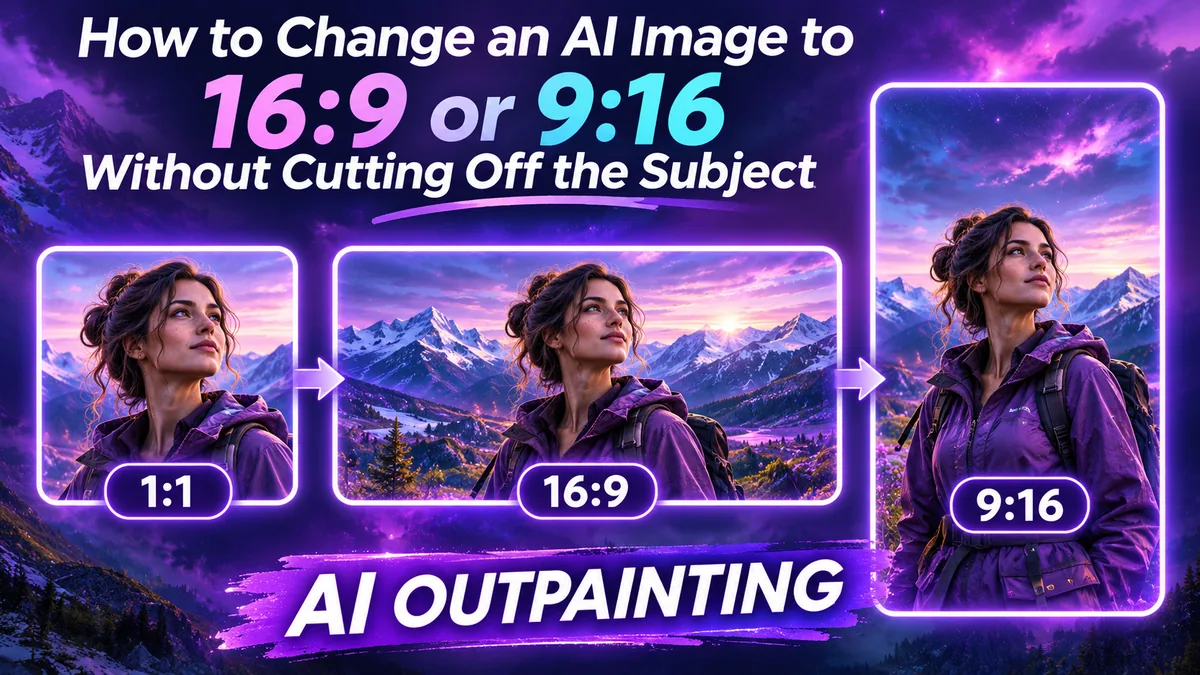
You have generated the perfect square AI image, but now you need a widescreen thumbnail or a vertical image for Shorts. Cropping can cut off hands, clothing or products; stretching distorts proportions. Instead, expand the canvas around the subject. This guide explains how to choose between conventional canvas extension, AI outpainting and generative recomposition.
Choose the right method
Cropping removes pixels. Stretching distorts proportions. Canvas extension adds space without changing the original region. Outpainting generates new scenery beyond the existing boundaries. Recomposition rebuilds the scene and may alter the subject. If exact preservation matters, protect the original layer rather than relying on a prompt.
How much space do you need?
For a 1080 × 1080 source, use a 1920 × 1080 canvas for 16:9 or 1080 × 1920 for 9:16. For 16:9, add 420 pixels left and right and zero vertically. For 9:16, add 420 pixels above and below and zero horizontally. The new area occupies 43.75% of the final canvas. No source pixels need to be cropped or stretched.
Illustrative canvas diagram: purple represents the unchanged source region; pale areas represent added space. This is not a generative tool test.
Method 1: AI outpainting with ChatGPT
Upload the highest-quality source. Ask for the target aspect ratio and describe only the added scenery. Use the aspect-ratio control if available. Inspect the exported dimensions rather than assuming the prompt guarantees an exact ratio.
Horizontal prompt: Expand this image into a horizontal 16:9 composition. Keep the entire original subject visible. Preserve facial features, clothing, pose, proportions and lighting as closely as possible. Extend the existing background naturally to the left and right. Do not stretch the subject or introduce unnecessary objects.
Vertical prompt: Expand this image into a vertical 9:16 composition. Keep the original subject fully visible. Extend the environment above and below, matching lighting, perspective and style. Leave clean space for captions. Do not generate text.
ChatGPT may regenerate existing details even when asked not to. Compare faces, fingers, logos and text against the source. See our guide to unexpected changes during ChatGPT image editing.
Method 2: Outpainting with Photoshop Generative Expand
Open the image, select the Crop Tool, set the target ratio and extend the crop boundaries beyond the original. Position the subject, choose Generative Expand and generate the surrounding scenery. Try an empty prompt for a natural continuation or a short description such as “continue the neutral studio backdrop.” Keep an unchanged copy of the original layer. Consult Adobe’s Photoshop documentation for current controls.
Method 3: Canva Magic Expand
Create a design at the target dimensions, upload the image, select it and locate Magic Expand in the image editing tools. Choose the expansion area, generate, inspect the edges and export. Availability depends on the account and plan. See Canva for current details.
The safest workflow for products, faces and text
Use this protected-layer workflow when the original must remain unchanged:
- Create the exact-size canvas.
- Place the source on a separate layer at native resolution.
- Generate or manually fill the surrounding area on another layer.
- Place the untouched original above the background; blend only outside its boundaries.
- Export PNG without global filters, resampling or color conversion. Compare the corresponding source region pixel by pixel.
A locked layer alone does not guarantee preservation if the export pipeline changes colors or resolution.
For a plain studio background, use a matching solid color or gradient instead of AI. It is faster and avoids hallucinated objects. If the original has a complex background, a hard boundary may remain; refine the generated region without painting over protected pixels.
Compose for the destination
YouTube thumbnails: use 16:9, position the subject to one side and leave clean space for a headline. Ask for additional background rather than generated lettering. Shorts and Reels: use 9:16, keep faces and important objects away from the bottom caption area and right-side action icons; exact safe zones vary by platform and device, and preview the actual platform layout before publishing. For a square post, expand the shorter dimension if cropping would remove important details.
Troubleshooting
Face changes: protect the source layer. Visible seams: match perspective and lighting, or expand in smaller stages. Extra objects: simplify the prompt to a continuation of the existing environment. Distortion: lock the source aspect ratio. Wrong output dimensions: place the result on an exact-size conventional canvas. Blurry output: avoid repeated resizing and check the actual resolution. See our upscaling guide.
Which method should you choose?
| Method | Best for | Subject safety / watch-out |
|---|---|---|
| ChatGPT | Creative variations | May regenerate the subject |
| Photoshop Generative Expand | Controlled canvas expansion | Keep original layer; inspect seams |
| Canva Magic Expand | Social layouts | Inspect changes and export dimensions |
| Manual layer extension | Exact source preservation | Requires matching background and lossless export |
These are workflow recommendations, not measured rankings. We have not benchmarked these tools under identical conditions for this article.
Frequently asked questions
Can I convert a landscape image to portrait without cropping? Yes. For example, a 1920 × 1080 source fits into a 1920 × 3413 canvas (approximately 9:16) without resizing. A large amount of new background will be needed. For an exact integer 9:16 canvas without resampling, use 1926 × 3424 because 1926 = 9 × 214 and 3424 = 16 × 214. Add six horizontal pixels and 2344 vertical pixels.
Is outpainting the same as upscaling? No. Outpainting adds surrounding content; upscaling increases resolution. Does outpainting preserve identity? Not necessarily. For consistent characters, see our character consistency guide.
Final thoughts
Expand the canvas, not the subject. Choose generative expansion when you need new scenery, and protect the original pixels when faces, product details or text must remain unchanged. Verify dimensions and inspect the result before exporting.
Featured image: AI-generated editorial illustration, not a controlled outpainting test.