
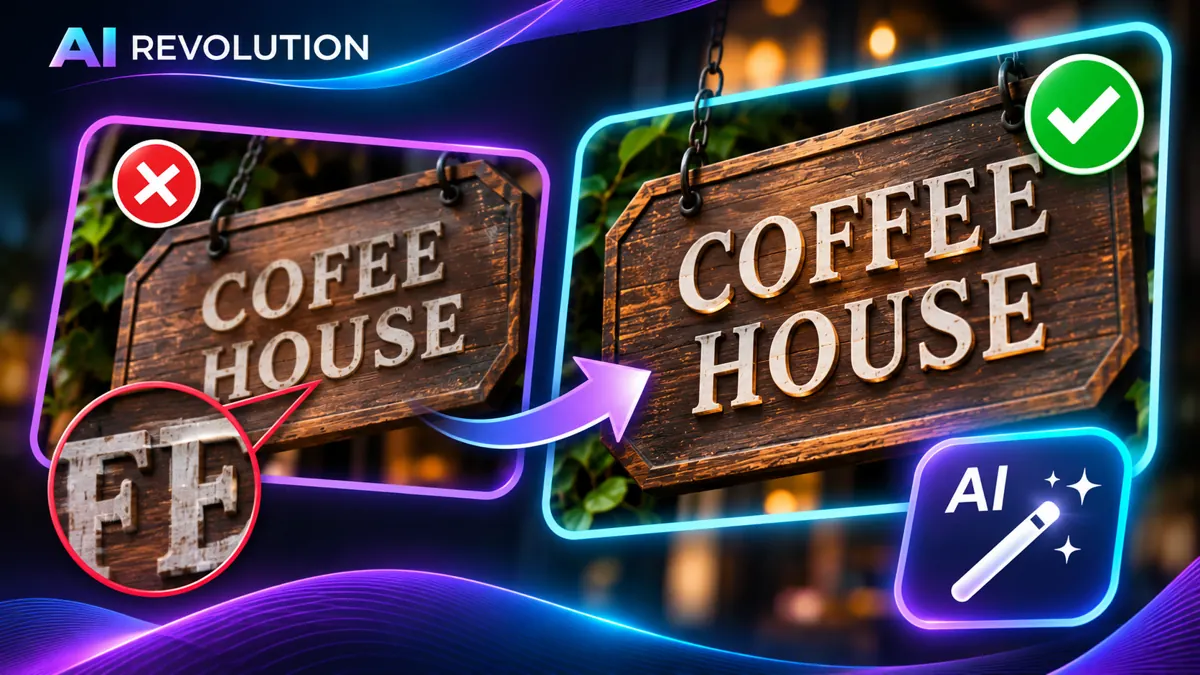
One wrong letter can ruin an otherwise convincing AI-generated image. Our café looked realistic, but the wooden sign read COFEE HOUSE instead of COFFEE HOUSE. Rebuilding the entire image risks losing the scene you liked.
Quick answer: Try a targeted image edit, asking the model to replace the entire word with correctly spaced letters. Inspect every character at full size. If letters overlap or surrounding details change, remove the bad lettering and add the correct words as an editable text layer.
Real test: ChatGPT Images vs Nano Banana
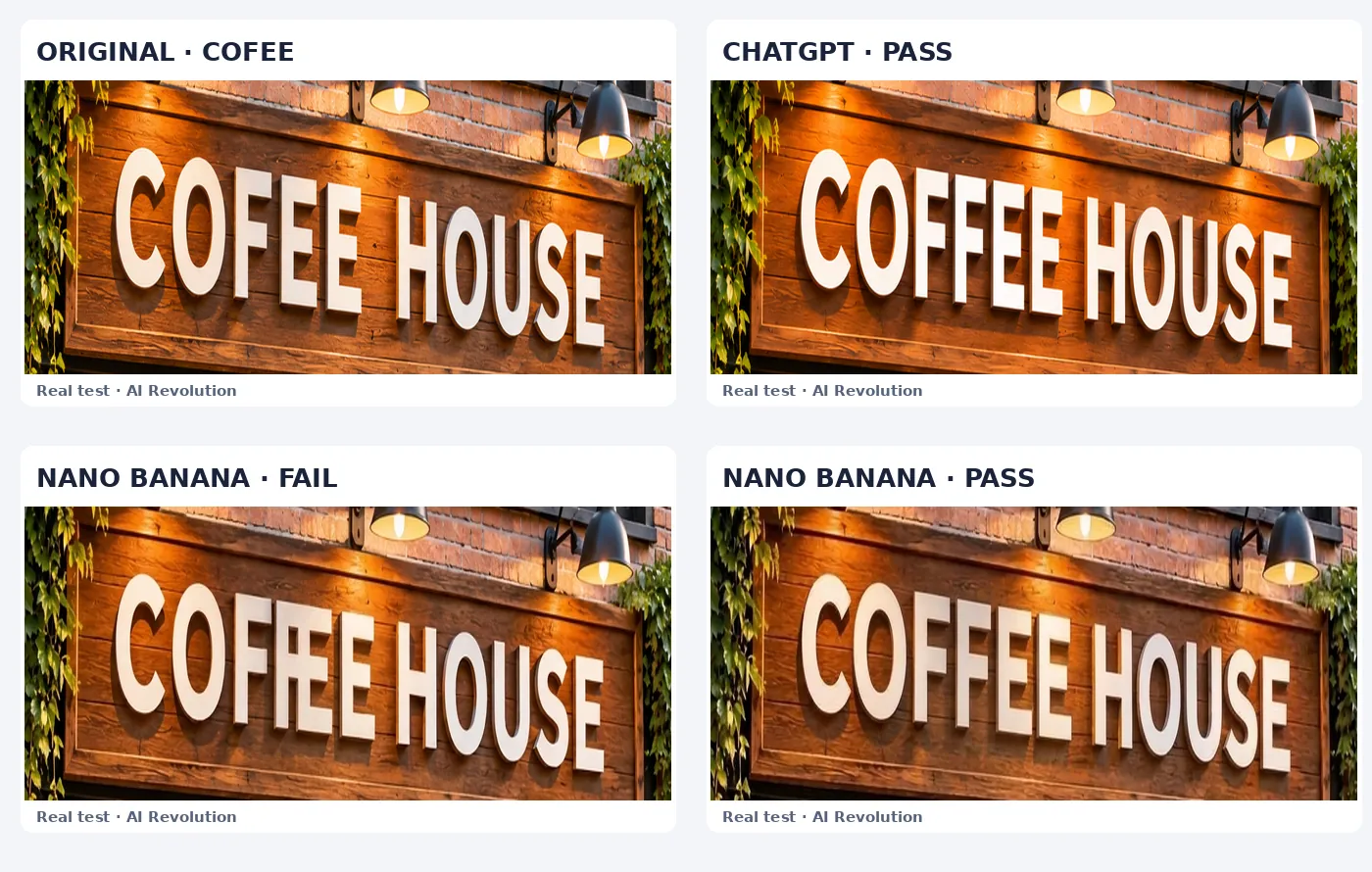
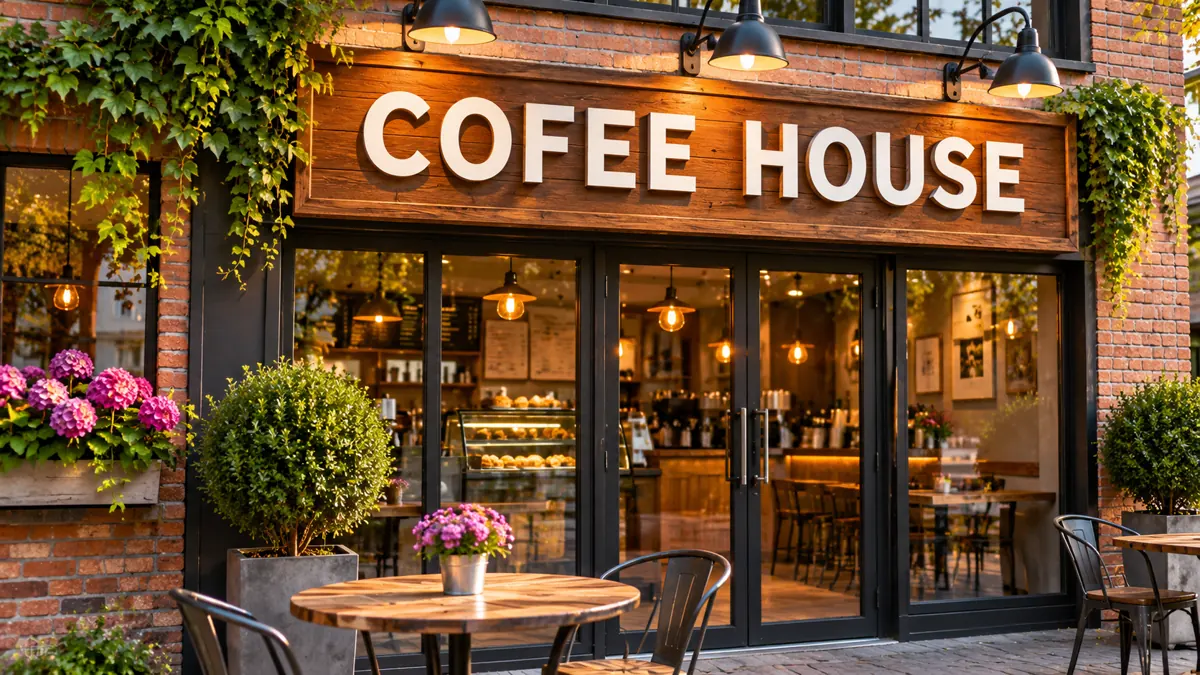
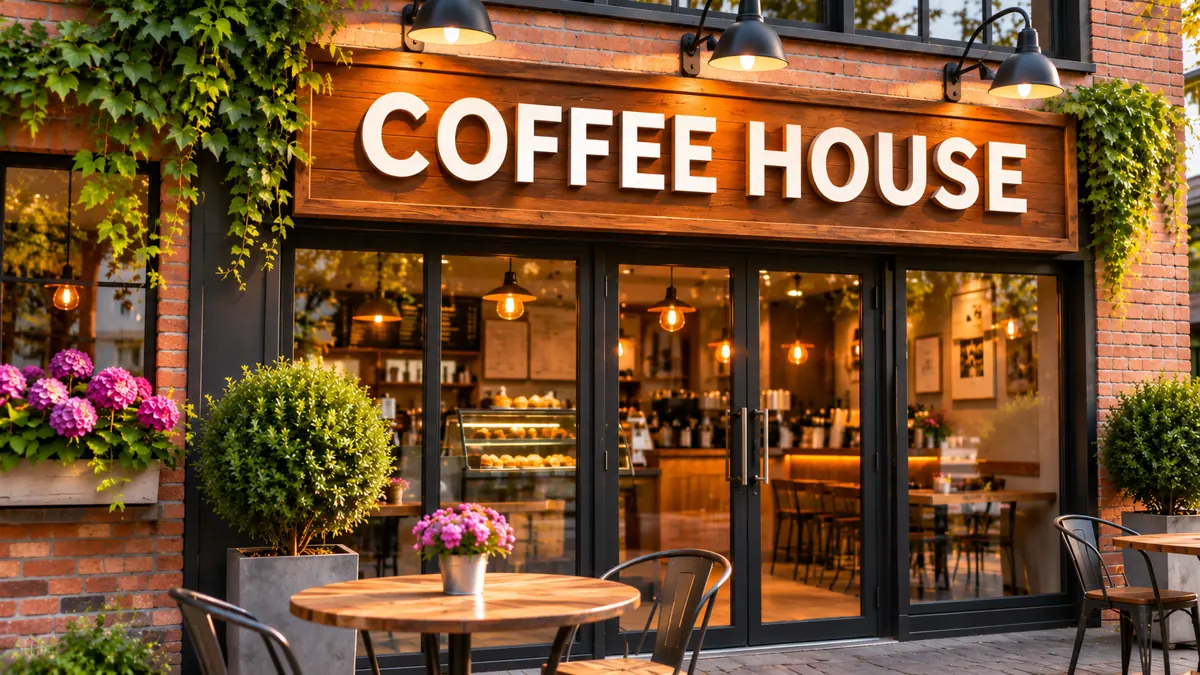
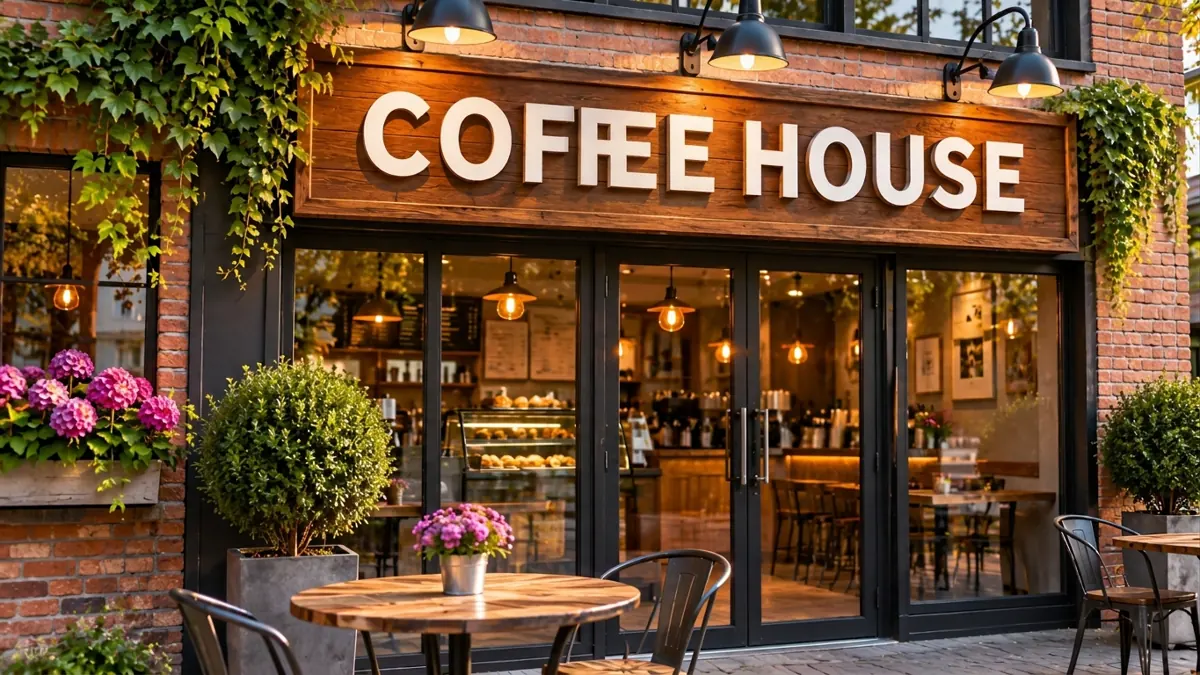
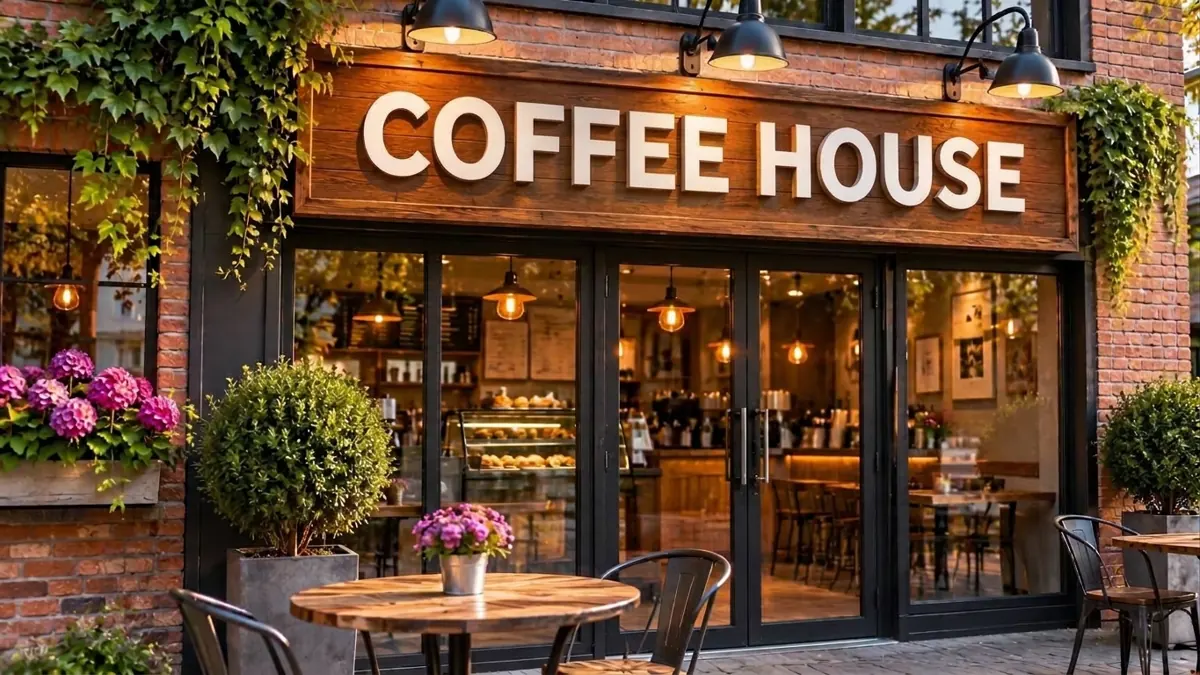
We started from the same AI-generated café image with a deliberately missing F. The task was to correct the sign without changing the storefront. Here are all four real results, including the failed attempt.
| Attempt | Text | Scene |
|---|---|---|
| Original | COFEE HOUSE | Intentional typo |
| ChatGPT, first try | Correct | Some details changed |
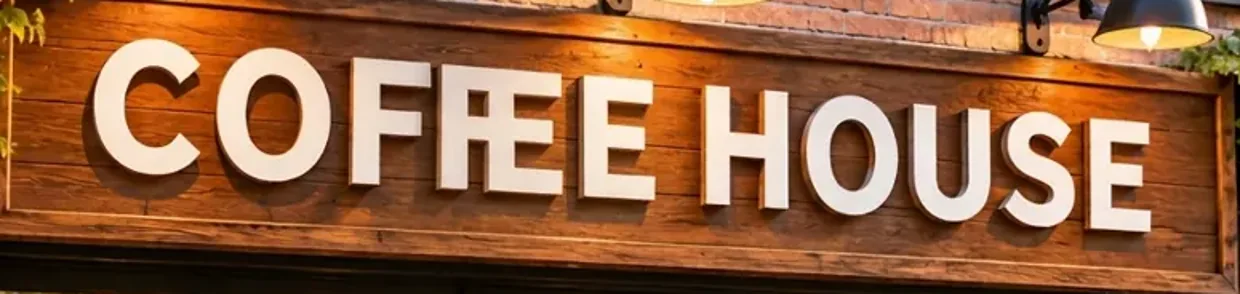
| Nano Banana, first try | Overlapping letters | Recognizable, not identical |
| Nano Banana, second try | Correct | Some details changed |
Test setup: Conducted in November 2026 using the same original café image for the first edits; the second Nano Banana attempt also restarted from that original. The image files preserved for this article are 1200 × 675 pixels. This is the resolution of our archived examples, not a verified record of the generation settings. We have no documented upscale step, and cannot confirm whether either first edit used a selection or mask. The exact model variants were not captured.
Testing limits: The first edits used Russian instructions. The successful Nano Banana retry used a longer English instruction and started again from the original. Since both the prompt and generation attempt changed, this is not a controlled model-quality benchmark. Exact model variants, credit costs and total spend were not recorded. We cannot claim that the longer prompt alone caused the improvement.
Original image
ChatGPT Images: first attempt
Nano Banana: first attempt failed
Nano Banana: second attempt succeeded
Method 1: Fix the sign with a targeted AI edit
- Keep your original. Save a separate copy before editing.
- State the current and desired text exactly. Use quotation marks and identify the sign’s location.
- Target the area. If the editor supports a selection tool, select the sign; otherwise describe the location precisely.
- Rebuild the word if necessary. Adding one letter can crowd neighboring letters; request correctly spaced characters across the entire word.
- Zoom in and inspect. Check every letter, letter spacing, perspective, shadows and the surrounding scene.
ChatGPT Images supports editing an uploaded image with text instructions or a selection tool, but OpenAI warns that changes can extend beyond a selected area. Official editing instructions. Google Gemini supports image uploads and prompted edits using Nano Banana; model and feature availability vary. Official Gemini guide.
Copyable English repair prompt
Edit only the wooden sign above the coffee shop entrance.
The current text is incorrect: "COFEE HOUSE". Replace it with the exact text: "COFFEE HOUSE".
Rebuild the entire word "COFFEE" with correct letter spacing. Make sure all six letters are clearly separated, with no overlapping, merged, or distorted characters.
Keep the original font style, white 3D lettering, wooden background, perspective, shadows, and lighting.
Do not change the storefront, windows, plants, furniture, or any other part of the image.
The final sign must read exactly: COFFEE HOUSE.
This is the English prompt from our successful second Nano Banana attempt. It is a useful starting point, not a guaranteed fix.
Method 2: Replace the text with an editable layer
If spelling must be exact, as on a product label, client logo, price tag or event poster, a normal text layer offers more predictable control. This is a recommended workflow, not an additional test we performed on the café image.
Example workflow in Photopea (manual method, not part of our test)
- Open Photopea, choose File → Open, and load a copy of the image.
- Duplicate the background layer in the Layers panel, so the original remains untouched.
- Zoom in on the sign. Use a selection and a suitable retouching method, such as Clone Stamp, to cover the incorrect letters with nearby clean wood texture. Work in short strokes and check the grain and lighting; a flat color patch may look artificial.
- Select the Type tool (T) and add COFFEE HOUSE as a new text layer. Choose a close font, adjust size, letter spacing and color, then position it over the cleaned sign.
- Use Edit → Free Transform to adjust scale and orientation. If the sign is angled, adjust the text perspective as needed. Add a restrained shadow only if the source lettering has depth.
- Compare with the original at 100% zoom. Save an editable PSD via File → Save as PSD, then export a flattened copy using File → Export As in a format suitable for your use.
Limitation: Retouching textured surfaces and matching raised 3D letters can take manual work. This workflow gives you control over spelling, but it does not automatically reproduce the original typography or lighting.
Which fix should you use?
| Situation | Recommended starting point |
|---|---|
| One short word on a sign | Localized AI edit, then zoom in |
| Brand name, prices or exact client copy | Editable text layer |
| Long menu or multi-line text | Editable text layer |
| Text on a curved mug or bottle | Text layer with warp or displacement |
Quality checklist before exporting
- Read every character, especially repeated letters like FF and EE.
- Look for overlapping glyphs, strange spacing and duplicated edges.
- Compare the original and edited background: windows, plants, shadows, reflections and straight lines.
- Check text perspective and whether it appears attached to the sign.
- Preview at mobile size as well as 100% zoom.
- Keep the original and an editable project file for future changes.
FAQ
Can AI correct misspelled text in an existing image?
Sometimes. In our small test, ChatGPT Images corrected the café sign on its first attempt and Nano Banana produced a readable result on its second. Neither tool preserved every scene detail perfectly.
Why do letters overlap?
An AI image editor generates pixels rather than reliably moving editable font glyphs. New letters can become squeezed, merged or distorted in the available space.
Does a longer prompt always work better?
No. A more specific prompt can clarify the request, but our retry also involved a new generation, so we cannot isolate why it succeeded.
How do I keep the rest of the image unchanged?
Limit the edit to a small area and compare against the original. For exact control, use a conventional image editor and a separate text layer.
Final takeaway
Try a targeted edit, then inspect the lettering at full resolution. If the text remains distorted or the scene changes too much, use a text layer rather than repeatedly regenerating the whole image. Our real test shows both what AI correction can do and why careful inspection still matters.
Official references: OpenAI Images · Gemini image editing · Adobe text editing.