


Quick answer: To make an AI video longer than 10 seconds, either extend the existing shot in a model that supports video continuation, or generate several shorter shots and edit them together. Extend when the same action must continue; cut between shots when the camera angle, action, or location can change. A 30-second video does not need to be one 30-second AI generation.
This guide includes two real Runway continuation experiments and an editor-based alternative. Model controls, plan availability, duration limits, and credit costs can change; check the model currently selected in your account before generating.
Choose the right method before spending credits
| Your goal | Best starting point | Main risk |
|---|---|---|
| Continue one uninterrupted action | Extend the original clip | Character, motion, or background drift |
| Tell a 20–60 second story with several angles | Generate and assemble separate shots | Visible continuity jumps |
| Finish a shot, then show a reaction | Extend once, then cut to a new shot | Inconsistent identity across the cut |
Real-world test: two ways to continue one AI video
Tested November 12–13, 2026. Our original video is a five-second 720p Seedance 2.0 Mini clip of a small blue-and-cream robot reaching toward a purple glowing flower in a greenhouse. We made two separate five-second continuations, then joined each to the original with a straight cut, without transitions. Watch the join at approximately five seconds.
Experiment A: manual last-frame continuation
We took a screenshot of the original clip’s final frame, edited it to remove playback controls, and used that edited image to start a new five-second Seedance 2.0 Mini generation at 720p. Important: the screenshot editing also altered the flower’s brightness. The brighter purple glow visible at the join cannot be attributed to the video model alone.
Manual last-frame continuation: movement continues, but the flower becomes noticeably brighter at the five-second join.
Watch Experiment A directly on YouTube (join at approximately 00:05).
Experiment B: Runway Extend at a lower cost
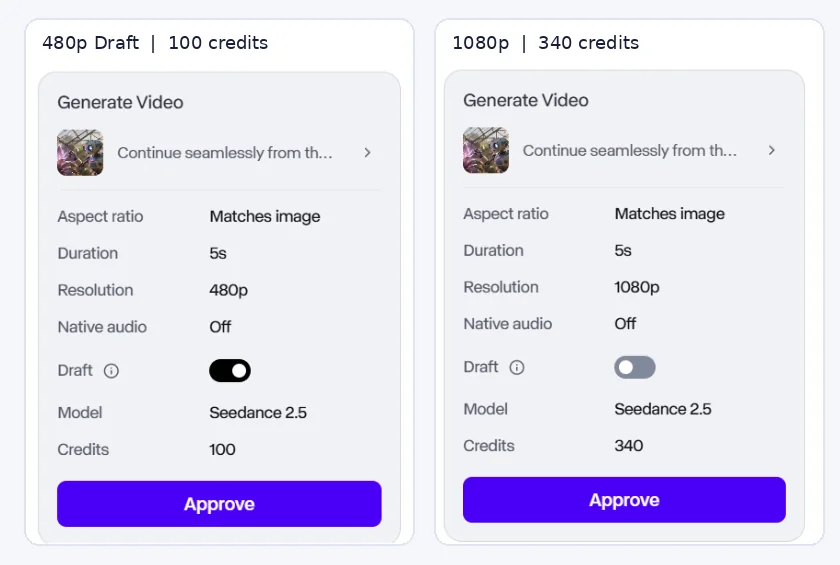
We selected Extend under the original clip. Runway’s observed workflow automatically extracted its final frame. The extension was generated using Seedance 2.5, five seconds, 480p Draft, audio off. Runway quoted 100 credits for this setting, compared with 340 credits for the available 1080p option. We intentionally chose Draft to demonstrate the workflow at lower cost, not to judge its maximum image quality. For the assembled video, the 480p segment was scaled to 720p, which does not add real detail.
Continue seamlessly from the final frame. The same small blue-and-cream robot gently reaches forward and touches the glowing purple flower. As its fingers make contact, a soft violet light spreads through the petals. The robot tilts its head slightly in wonder. Preserve the exact robot design, flower appearance, greenhouse environment, warm sunlight, and camera movement. One continuous cinematic shot, no cuts, no new objects, no text.
Runway Extend: a more convincing continuation, with a small visible jerk at the five-second join.
Watch Experiment B directly on YouTube (join at approximately 00:05).
What actually happened at the join
Manual last-frame method: The robot continues moving, but the join is clearly visible: the flower and scene suddenly become brighter. We had edited the captured frame to remove playback controls, and that editing changed the flower’s appearance. If you use this method, extract a clean, unaltered frame where possible, compare its brightness, color, framing, and subject position against the original ending, and avoid editing it unless necessary.
Runway Extend: The continuation looks considerably more natural in our test, but a small abrupt movement or jerk remains at the five-second boundary. It is not a perfectly seamless result. Runway extracted the final frame automatically, which removed the manual screenshot preparation step.
Why we did not hide the cuts: Both examples use straight cuts without smoothing. For a polished edit, trim unstable frames and match brightness and color. A short dissolve may soften an exposure jump, but can introduce ghosting and cannot reliably repair mismatched movement.
Limits of this comparison: We used Seedance 2.0 Mini for the manual continuation and Seedance 2.5 at 480p Draft (100 credits shown) for Extend. The manually edited screenshot and different resolutions also affect the comparison. These are two honest workflow demonstrations, not a controlled model-quality benchmark or success-rate measurement. Both clips are hosted on YouTube to avoid storing playback files on the website.
Method 1: Extend an existing AI video in Runway
Runway documents a dedicated Extend mode for Seedance 2.5. It can generate footage that continues forwards from the end of a source clip or backwards before its beginning. Crucially, the extension is a new, separate clip—not an automatically merged longer file. You must join it to the original in an editor. This is a model-specific workflow; not every Runway model offers the same Extend control.
- Open Runway Tools, choose Video, and select Seedance 2.5. Alternatively, use the Seedance 2.5 (Edit/Extend Video) node in Workflows.
- Choose Extend and supply the existing clip. Review the final second carefully: a cut, severe motion blur, or distorted face makes continuation harder.
- Choose Forwards to continue after the clip, or Backwards to create footage before it.
- Describe only the next action. Keep the subject, environment, camera movement, and lighting consistent with the source rather than introducing several changes at once.
- Set the extension duration and available output settings. In the current Seedance 2.5 documentation, duration can be 4–30 seconds or Auto; the exact options shown depend on the creation mode.
- Generate, download the new segment, and place it immediately after the original in Runway Studio or your preferred editor. Inspect the join before exporting.
Copyable continuation prompt
Extend the video forwards from its final frame. The same small blue-and-cream robot slowly reaches toward the glowing plant. Keep the robot's body shape, clothing, greenhouse layout, warm morning light, and camera direction consistent. Continue the existing gentle forward camera movement. The robot touches one leaf; the leaf begins to glow brighter. One continuous action, no new characters or scene change.
Why this prompt is narrow: it gives the model one new action and restates continuity constraints. These words are a practical starting point, not a guarantee that identity or motion will remain stable.
What if Extend is missing?
Check the selected model and creation mode first. Runway’s Gen-4 Video guide, for example, documents Use Current Frame to turn a frame into a new image-to-video input, but that is not the same as a dedicated video extension. If your model has no Extend mode, export a usable last frame, create a second shot from it in an image-to-video workflow, and join the results manually. Expect possible motion discontinuity at the cut. See our guide to first and last frames.
Method 2: Build a longer video from short AI clips
For a story with multiple actions, separate shots are often easier to control than repeated extensions. Runway’s own long-form video guidance recommends planning individual shots and assembling them in editing software. The key is to make each cut feel intentional.
Example: plan a 25-second scene
This is an illustrative production plan, not a completed generation or measured benchmark. Use five planned beats, then trim the actual outputs to fit the story:
- 0–5 seconds: Wide shot. The robot enters a greenhouse and notices a glowing plant.
- 5–10 seconds: Medium shot. The robot walks toward the plant.
- 10–15 seconds: Close-up. Its hand approaches a leaf.
- 15–20 seconds: Insert shot. The leaf lights up when touched.
- 20–25 seconds: Reaction shot. The robot looks surprised.
These timestamps are editing targets, not required model settings. If a usable shot is only three seconds long, trim the sequence or give another shot more time. Do not force every generation to last exactly five seconds.
Use a continuity sheet for every shot
Before generating the next clip, record the character’s reference image, color palette, distinctive features, wardrobe, setting, time of day, aspect ratio, and camera direction. Reuse the same references when the tool supports them. Keep screen direction consistent: if the robot walks left-to-right in one shot, a sudden right-to-left shot may look like it turned around.
For a character-reference workflow, see How to Keep the Same AI Character in Multiple Videos. For camera instructions, use our AI video camera movement prompts.
How to join the clips without an obvious jump
- Import all clips into a timeline editor and arrange them in story order.
- Trim unstable opening and ending frames; avoid joining on a visibly distorted face or object.
- Cut on action where possible: begin the hand movement in one shot and complete it in the next.
- When two character shots do not match, insert a brief close-up of the plant or another relevant object. This can conceal a camera-angle change, but it does not fix inconsistent character design.
- Keep music or ambient sound continuous across visual cuts, then adjust dialogue and effects separately.
- Export a review copy and watch it twice: first without sound for visual continuity, then with sound for timing and audio transitions.
Fix the most common failures
| Problem | Likely cause | Try this first |
|---|---|---|
| Face or clothing changes after extension | Identity drift | Use a cleaner source ending; shorten the next action; switch to a cut with a character reference |
| Visible freeze at the join | Motion does not continue naturally | Trim the hold or cut on a different frame; do not assume a crossfade fixes motion |
| Background changes between shots | Inconsistent references or prompts | Reuse location references and lighting notes; use an intentional cutaway if necessary |
| Sound abruptly stops | Audio ends with the clip | Edit sound on a separate track and smooth the transition |
| Credits disappear after repeated attempts | Too many simultaneous changes | Change one variable per iteration; use draft previews where supported |
How much will a longer AI video cost?
There is no universal price per finished minute. In our actual five-second Seedance 2.5 Extend test, Runway displayed 100 credits for 480p Draft and 340 credits for the available 1080p setting. Choosing Draft meant a displayed saving of 240 credits for this one extension, at the expense of resolution and preview quality. These were the prices shown for our specific job, not a promise about other accounts or future prices. Runway’s documented base rates for these settings are 20 credits per generated second at 480p Draft and 68 credits per generated second at 1080p. Its documentation also lists possible input-video charges for video-based operations (for example, an additional 10 credits per input second at 480p/Draft or 34 at 1080p). For a five-second input, those charges would add 50 or 170 credits respectively if applied, making illustrative totals of 150 or 510 credits. Our screenshots show approval estimates of 100 and 340 credits, but do not establish whether an input-video surcharge was applied or what was ultimately deducted. Always verify the final estimate and credit history for your own job. We did not verify a complete credit total for the separate manual continuation and therefore cannot claim which full workflow was cheaper. For a longer project, budget for each generated segment and any retries; a 25-second final edit can require more than 25 seconds of paid generations.
Frequently asked questions
Can an AI video be longer than 10 seconds?
Yes. You can extend a supported source clip or assemble multiple short generations into a longer timeline. The finished video’s length does not need to match one generation’s duration.
Does Runway Extend create a seamless transition?
Not always. In our example, Extend preserved the scene well but produced a small jerk at the join. Inspect the boundary and consider trimming or editing before delivery.
How much does extending an AI video cost?
It depends on the model, settings, source video and duration. Our five-second 480p Draft Extend job displayed 100 credits, while a 1080p option displayed 340 credits. Check the actual estimate shown in your account rather than treating those numbers as a fixed price list.
What is the maximum extension length in Seedance 2.5?
Runway’s linked Seedance 2.5 documentation describes a 4–30 second duration range or Auto in supported modes. That is a setting for an individual generation, not a guarantee of a flawless 30-second continuation. Available controls can vary by workflow.
Can I use the same editing method with other AI video tools?
Yes. Joining separately generated clips in a timeline editor is tool-independent. You can apply the approach to clips exported from other generators, including Kling, Pika, Luma, Veo or Hailuo, where export is available. This does not mean all those tools offer the same built-in Extend function, duration controls or pricing.
Runway settings and credit-rate references reviewed November 13, 2026. Model availability, interfaces, and pricing can change.
Official documentation and next steps
- Runway: Creating with Seedance 2.5 — Extend mode, directions, duration and separate output behavior.
- Runway: How to create longer videos and films — shot planning and editing workflow.
- Runway: Creating with Gen-4 Video — using a current frame as a new input.
Bottom line: If the action needs to continue without a cut, try a supported Extend mode and inspect the new segment carefully. If you need a longer story, plan short shots, reuse references, and edit the clips together. A convincing 30-second AI video is usually an editing problem as much as a generation problem.