
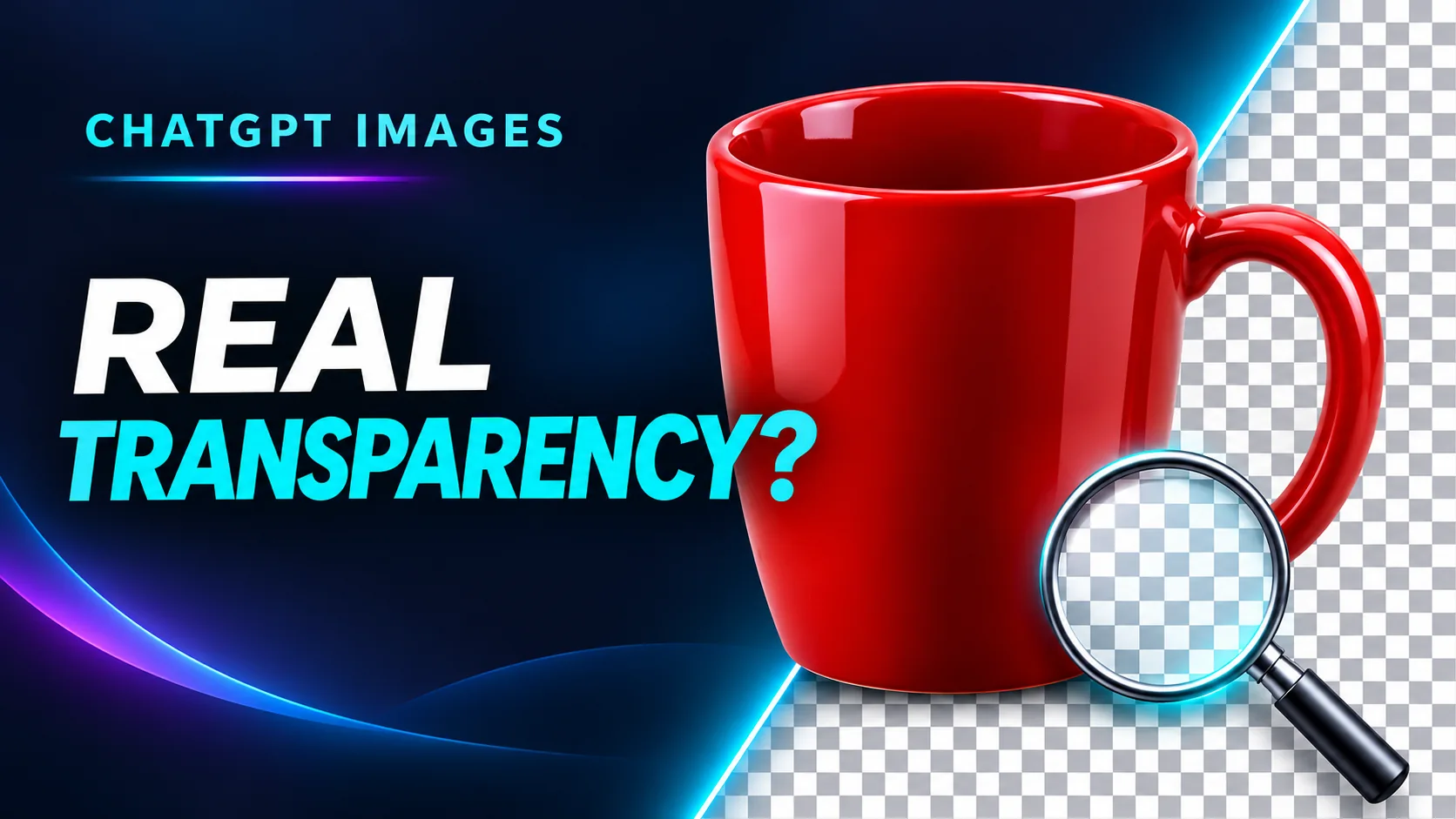
Yes, ChatGPT Images can create images with a genuinely transparent background. But a white backdrop—or a gray-and-white checkerboard drawn into the image—is not transparency. In our November 17, 2026 test, two red-mug images generated in ChatGPT contained actual transparent pixels. This guide explains how to request transparency, verify the downloaded file, and avoid being fooled by a fake checkerboard.
Quick steps: make and verify a transparent ChatGPT image
- Ask ChatGPT for a single isolated object and a genuinely transparent background.
- Save the generated image file—not a screenshot of its preview.
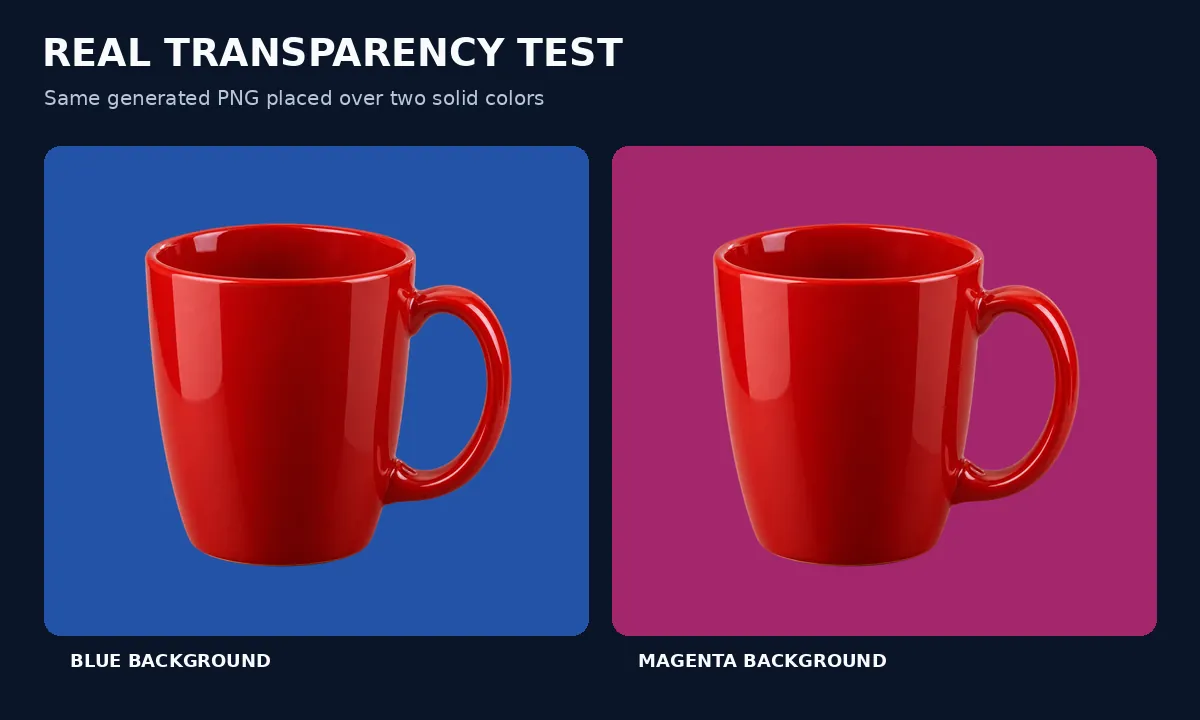
- Place the file over a vivid blue or magenta layer in an image editor.
- Check whether the color shows through around the object, then zoom to 200% to inspect edges.
- If the background is still visible as white or checkered pixels, regenerate or remove the background using an editor.
Can ChatGPT make a transparent background directly?
Yes. OpenAI’s official ChatGPT Images documentation explicitly lists making a background transparent among its capabilities. However, the image preview and the file extension alone do not prove the output is transparent. The downloaded file needs to be checked. PNG and WebP can carry alpha transparency; JPEG cannot.
Our real test: two red mugs, two transparent outputs
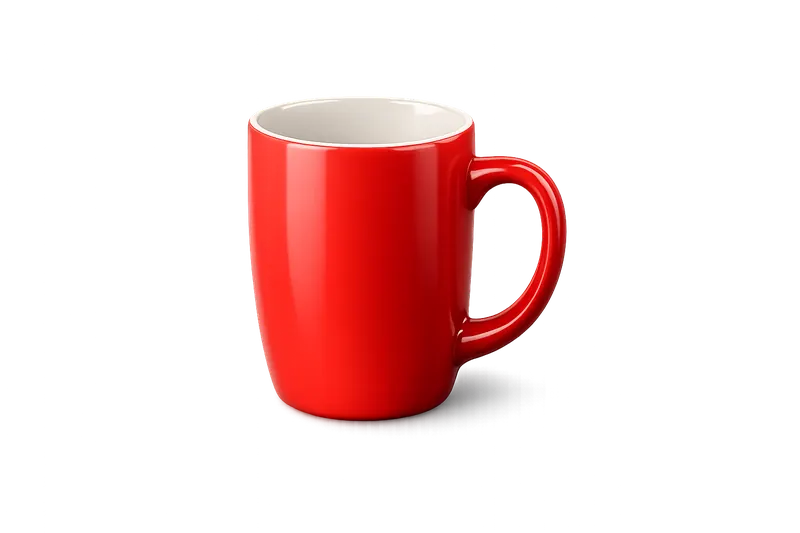
Test date: November 17, 2026. Tool: ChatGPT image generation in this conversation. Model identifier: not separately captured from the generation interface. Input: text only, no reference photo. Attempts recorded: two. Paid credits: not recorded. Method: we inspected the actual PNG files with Pillow, checked their alpha-channel ranges and corner values, and created colored-background composites.
Test 1: glossy red mug
Generation description recorded for the first attempt:
A crisp, studio-quality product image shows a single glossy red ceramic mug isolated on a checkerboard transparent background. Shown in a tight three-quarter view, the slightly tapered mug has a thick reflective rim, visible red interior, rounded loop handle on the right, and polished highlights across its smooth, logo-free surface.

Test 2: another mug on a requested checkerboard
Generation description recorded for the second attempt:
A glossy red ceramic mug is shown at a three-quarter angle against a light gray-and-white checkered transparency backdrop, revealing its cylindrical body, white interior, and rounded C-shaped handle. Soft, even lighting highlights its smooth contours and polished finish, with no cast shadow or other objects present.
| Measured property | Test 1 | Test 2 |
|---|---|---|
| Original file format | PNG | PNG |
| Image mode | RGBA | RGBA |
| Original dimensions | 1312 × 1199 | 1536 × 1024 |
| Alpha at all four corners | 0 (transparent) | 0 (transparent) |
| Transparent pixels present | Yes | Yes |
What this proves: both files had actual transparency; it does not prove a 100% success rate, perfectly clean edges, or reliable performance for every subject. A two-image case study is not a benchmark.
A white background is not a transparent background
White or pale gray pixels may look empty against a white page, but they will cover whatever sits behind the image. A transparent area has an alpha value of 0, so the underlying layer shows through. An alpha value of 255 means fully opaque; values between them mean partial transparency, which is useful for antialiased edges and soft shadows.
Fake checkerboard: when the grid is part of the picture
Image editors often display transparent regions using a gray-and-white checkerboard. Sometimes a generated image contains those squares as ordinary pixels instead. This is called a fake checkerboard or baked-in checkerboard. It can even be saved as a PNG, because the file format does not guarantee that transparent pixels exist.
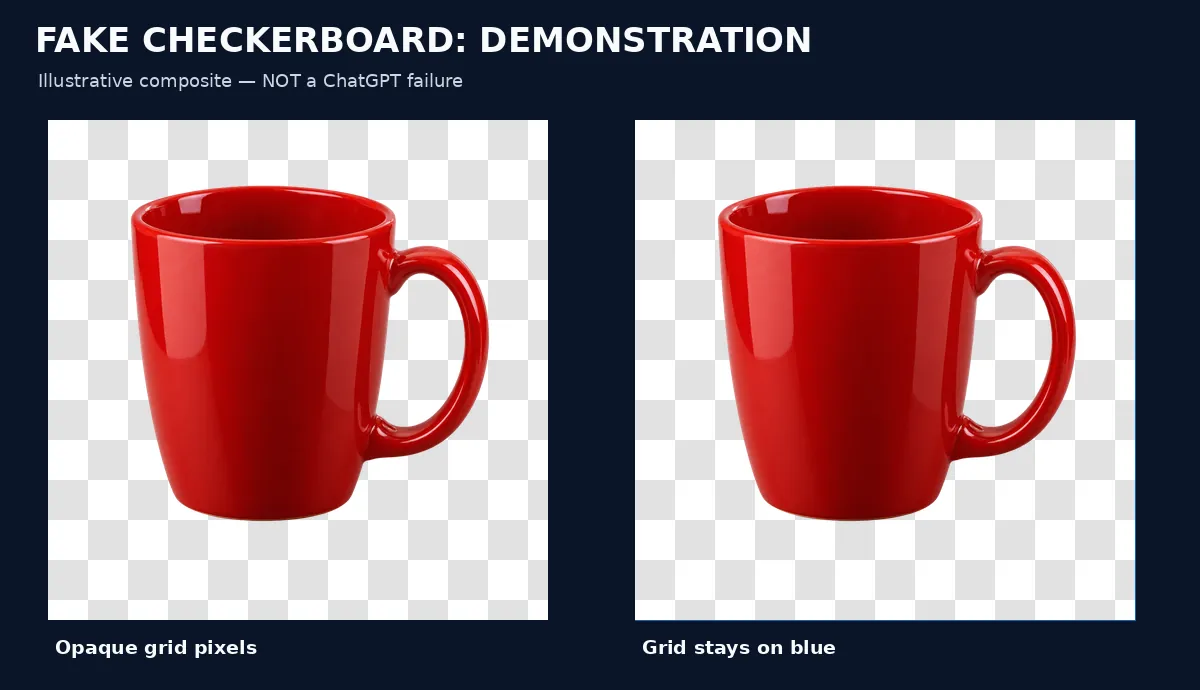
Reliable test: put the downloaded image on a solid, strongly colored layer. If the squares remain around the subject, they are baked in. If the editor’s checkerboard disappears and the colored layer shows through, the background is truly transparent.
Copyable prompt for a transparent PNG
This is a recommended prompt template, not one of the two exact prompts above. Its reliability has not been separately measured:
Create a single [OBJECT] centered in the image, fully visible with a little space around it. Make the background genuinely transparent with an alpha channel, suitable for a transparent PNG. Do not draw a gray-and-white checkerboard, a white backdrop, a wall, a floor, or a scene. No text, frame, reflection, or cast shadow outside the object. Keep the object edges clean and natural.
Replace [OBJECT] with your subject. For hair, fur or glass, ask specifically to retain delicate edges or realistic translucency, then inspect the saved result carefully.
How to check transparency in an editor
Method 1: use a colored layer
- Open the downloaded file in an editor that supports layers, such as Photoshop, GIMP, Photopea or Canva.
- Create a new layer or rectangle filled with vivid blue, magenta or green.
- Move the colored layer below the image.
- Look around the subject. If the colored layer shows through, those areas are transparent. If you see a white rectangle or fixed checkerboard squares, they are not.
- Repeat over a dark background to spot pale halos.
Do not rely on a screenshot or a thumbnail preview. A screenshot flattens the visible background into image pixels.
Method 2: inspect the alpha channel (advanced)
In a desktop editor, inspect the layer’s transparency or alpha channel. For a technical check (optional), Python and Pillow can read the downloaded file:
from PIL import Image

im = Image.open("your-image.png")
if "A" not in im.getbands() and "transparency" not in im.info:
    print("No alpha or transparency information found")
else:
    alpha = im.convert("RGBA").getchannel("A")
    minimum, maximum = alpha.getextrema()
    print("Alpha range:", minimum, maximum)
    print("Has fully transparent pixels:", minimum == 0)
If the image has no transparency information, it is generally opaque. If its alpha minimum is 255, every pixel is fully opaque; below 255 means some transparency exists. Neither check alone proves the entire background was removed correctly, so inspect the result on a colored layer.
Check the edges at 200% zoom
Inspect the silhouette on both light and dark backgrounds. Look for white fringes, gray halos, accidental holes, jagged edges, or missing fine details. Our test verified alpha transparency, not a quantitative edge-quality score. For a focused cleanup workflow, see How to Fix White Edges Around AI-Generated Transparent Images.
What to do if ChatGPT gives you a white background or fake grid
- Save and inspect the original file first. Do not assume the preview is accurate.
- Regenerate with a simpler subject and clearer instructions. Explicitly request actual alpha transparency and no drawn checkerboard.
- Use a background-removal workflow if repeated attempts fail. Keep the original subject pixels when exact logos, labels or product features matter.
- Check the final export again. A JPEG export or a flattened editor layer can destroy transparency even if the original was correct.
If you are editing a real product photo rather than generating a new object, see our ChatGPT product-detail accuracy case study: reconstructing the subject can alter small markings.
Common mistakes when making transparent ChatGPT images
Saving a screenshot instead of downloading the image
A screenshot captures the preview and its displayed background as ordinary pixels. Use the image download option and test the actual file instead.
Assuming every PNG has transparency
PNG can store transparency, but a PNG can also be fully opaque. Check it over a contrasting layer or inspect its alpha values.
Confusing a painted checkerboard with empty pixels
A fake checkerboard moves with the image and remains visible over a colored layer. An editor’s transparency grid is only a display aid.
Exporting a flattened image
Exporting as JPEG, or flattening onto a white layer before saving, can remove transparency. Check the final downloaded export—not only the working document.
Creating transparent logos in ChatGPT
For a simple icon or draft logo, request a single isolated symbol with no background and no added checkerboard. Download the file and test it over both black and white layers. Inspect the edges, any lettering, and the exact symbol shape. For a final brand logo, keep an editable master and verify all details; AI-generated lettering or geometry can change between revisions. This is practical guidance, not a separate logo-generation test conducted for this article.
Frequently asked questions
Can ChatGPT save a transparent PNG?
ChatGPT Images supports transparent backgrounds, and both outputs in our test were PNG files with transparent pixels. Still, verify the file you download; a PNG extension alone does not guarantee transparency.
Why does my transparent image show a checkerboard?
It may be your editor’s visualization of empty pixels, or it may be a checkerboard painted into the image. Put the file over a bright solid-color layer to tell the difference.
Can WebP preserve a transparent background?
Yes. WebP supports alpha transparency. The examples on this page are optimized WebP files derived from the original generated PNGs, and their transparent areas were retained.
How do I remove a white background from a ChatGPT image?
Try requesting a genuinely transparent background, then check the result. If the background is still opaque, use a background-removal or masking tool and export to a format that preserves alpha, such as PNG or WebP.
Bottom line
In our two-image test, ChatGPT generated real transparency. The practical lesson is not that every prompt will succeed: download the file, place it on a contrasting layer, inspect the alpha channel and check the edges. That is how you distinguish an actual cutout from a convincing preview.